

How to Create a Google Business Profile, Step by Step
A step by step walkthrough for creating and verifying a Google Business Profile, plus the settings most new businesses get wrong.
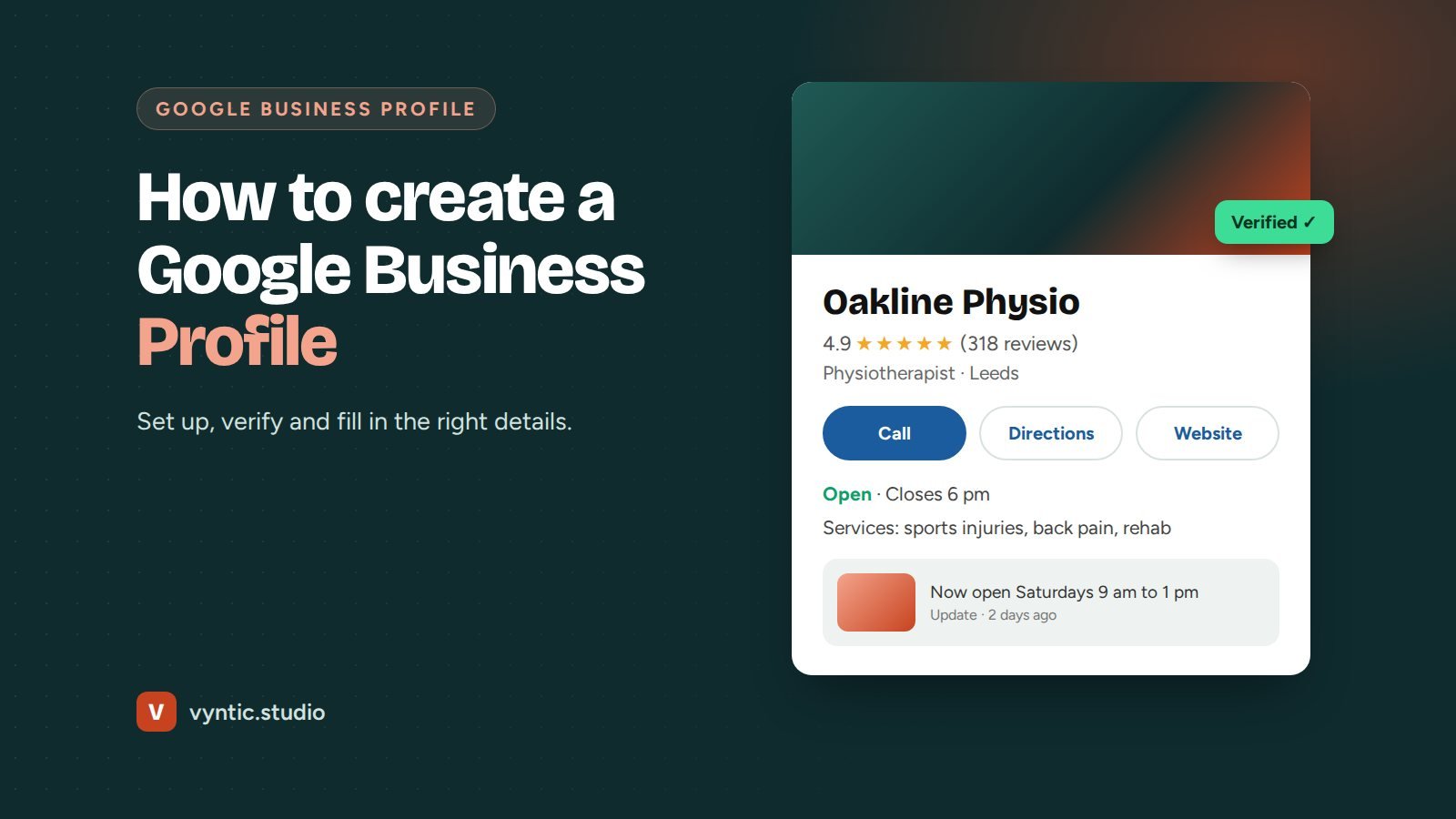
If customers search for your type of business nearby, your Google Business Profile is where many of them meet you first. Learning how to create a Google Business Profile properly takes about 30 minutes, and getting the details right from day one saves you from ranking problems and suspensions later.
This guide walks through every step, from signing up to verification, plus the settings that new businesses most often get wrong.
Before you start
Have these ready:
- a Google account that belongs to the business, not a staff member’s personal account
- your exact business name as it appears on your signage, invoices and website
- your address, or the towns and areas you serve if you visit customers
- your main phone number and website address
- a few good photos: logo, storefront or vehicle, team and recent work
Search Google Maps for your business first. If a profile already exists, perhaps created by Google or a previous owner, claim that one instead of making a duplicate.
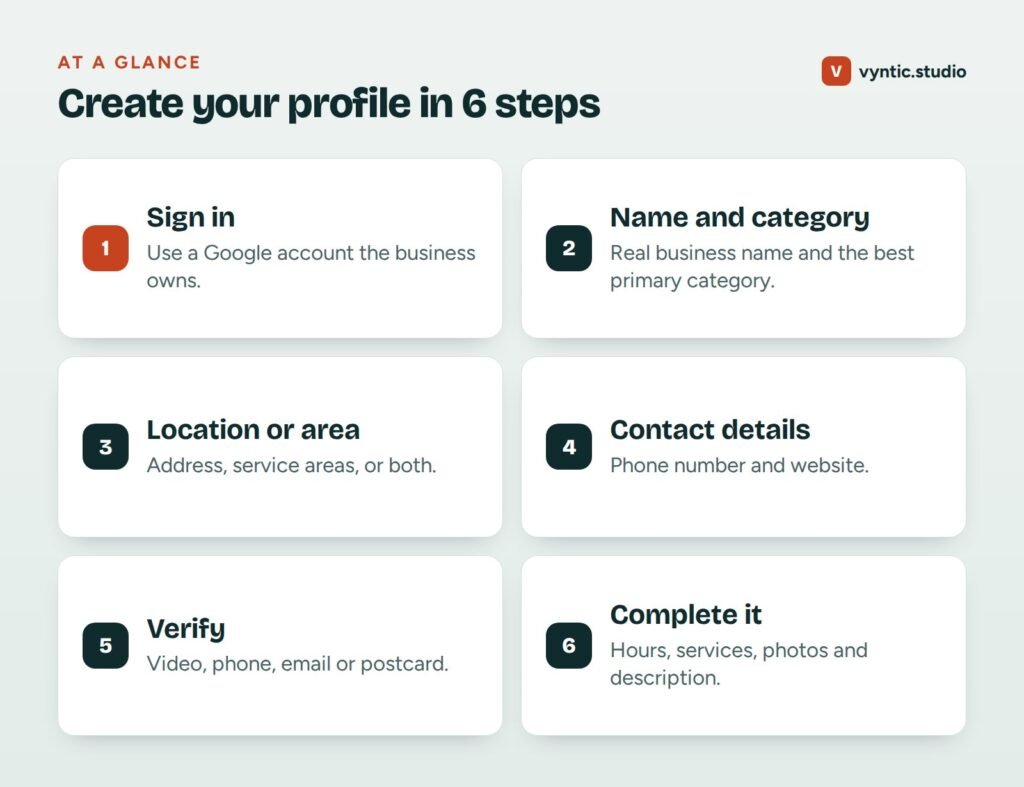
How to create a Google Business Profile in six steps
Step 1: Sign up
Go to google.com/business and click “Manage now”. Sign in with the business Google account. Type your business name. If Google suggests a matching business, select it to claim it. If not, choose to create a new one.
Step 2: Choose your primary category
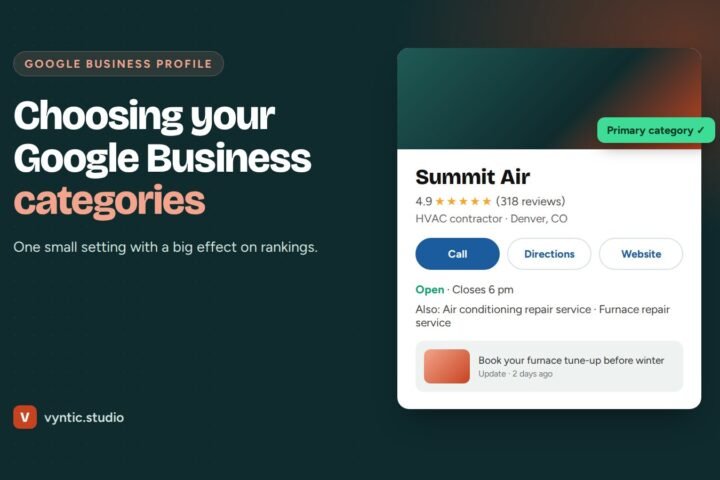
Pick the category that best describes your main business, such as “Dentist”, “Plumber” or “Personal injury attorney”. Be specific. This is one of the strongest ranking factors for local search, so do not pick something broad like “Service” when a precise option exists. You can add up to nine secondary categories later.
Step 3: Add your location or service area
If customers visit you, enter your address and place the pin exactly on your entrance. If you travel to customers, choose “No” when asked if you have a location customers can visit, then add the towns, cities or postcodes you serve. If you do both, add the address and the service areas.
Step 4: Add your contact details
Enter the phone number customers should call and your website address. Use a local number if you can, and make sure it matches the number on your website.
Step 5: Verify the profile
Google needs to confirm the business is real and that you manage it. Depending on your business, you may be offered video verification (a short recording showing your location, signage and proof of management), a phone or text code, an email code or a postcard. Follow the instructions exactly. For video, show your street, your signage, the inside of your premises and something only an owner can access, such as unlocking the door or opening the till.
Step 6: Finish your profile
Once verified, complete every section. Profiles with full details get more views and more trust.
What to fill in after verification
- Opening hours, including special hours for holidays.
- Services or products with short descriptions and prices where you can.
- Business description of up to 750 characters explaining what you do, who you help and where. No links or promotional phrases in capitals.
- Attributes such as wheelchair access, women-led, online appointments or free estimates.
- Photos: logo, cover photo, exterior, interior, team and at least ten photos of real work. Add new photos every month.
- Booking link if you take appointments online.
- Questions and answers: add the common questions customers ask, with clear answers.
Mistakes to avoid when creating your profile
- Adding keywords to your business name. “Smith Plumbing” is fine. “Smith Plumbing Best Emergency Plumber Denver” breaks the guidelines and is a common reason for suspension.
- Using a virtual office or PO box. Google does not accept these as business locations.
- Picking too many unrelated categories. Only add categories for services you really offer.
- Letting a former employee own the profile. Always keep the business account as the primary owner and add staff as managers.
- Creating duplicate profiles. One location, one profile.
The first 30 days after you create your profile
New profiles often rank poorly at first because Google has little to go on. Use the first month to build momentum:
- ask your ten most recent happy customers for a review, and reply to every one
- add a post each week, such as a recent job, a seasonal tip or an offer
- upload new photos every week, ideally taken on the job rather than stock images
- check the profile on a phone to make sure hours, phone number and booking link work
- add a link to your profile on your website’s contact page and in your email signature
Also keep an eye on “suggested edits”. Anyone can suggest changes to your profile, and Google sometimes applies them automatically. If your hours, category or website change without your input, correct them straight away.
What to do next
Creating the profile is only the start. To rank in the map pack you need reviews, regular updates and a website that supports your profile. Our full Google Business Profile guide covers the ongoing work, and our article on local business SEO shows how the profile fits into the bigger picture.
If you want it set up and optimized for you, our Google Business Profile optimization service handles setup, verification issues, categories, photos and posts. Or book a free project call and we will check your profile with you.
Frequently asked questions
Is a Google Business Profile free?
Yes. Creating and managing a Google Business Profile is free. Be careful of companies that call claiming you must pay Google to stay listed.
How long does Google Business Profile verification take?
Phone, email and video verification can be instant or take a few days. Video reviews can take up to a week. Postcard verification, where offered, usually takes up to two weeks.
Can I create a Google Business Profile without an address?
Yes. If you serve customers at their location, choose service areas and hide your address. You still need a real address for verification, but it will not be shown.
Can I have more than one Google Business Profile?
Only if you have separate, staffed locations. Creating extra profiles for areas where you have no office breaks Google guidelines and can lead to suspension.
2 comments