

WordPress Security Best Practices: How to Protect Your Site in 2026
WordPress runs roughly 43% of all websites, according to W3Techs. That reach makes it the biggest single target for hackers, bots and automated attack scripts. The same popularity that makes WordPress so useful also makes it the platform attackers probe most.
The good news is that most WordPress security problems are preventable. Most successful attacks rely on outdated plugins or themes, weak passwords or careless settings, and each of those has a clear, practical fix. This guide covers the security basics every WordPress site should have in place, whatever your technical level.
The Real Cost of a Hacked WordPress Site
Before the fixes, it helps to be clear about what is at stake. A hacked site is more than a technical nuisance:
- Google may flag the site with a security warning or remove infected pages from search results
- Hosts can suspend accounts that spread malware, taking the site offline
- Customer data can be exposed, which can bring legal and compliance problems depending on where you operate
- Injected code can redirect visitors to scam sites, damaging your reputation
- Clean-up costs money, often more than proper maintenance would have cost in the first place
Prevention is far cheaper than recovery. Here is what it looks like.
Essential WordPress Security Best Practices
1. Keep WordPress Core, Plugins and Themes Updated
Outdated plugins and themes are one of the most common ways into a WordPress site. When a vulnerability is found, the developer releases a patch. Attackers read the same announcements and scan the web for sites that have not updated yet.
Turn on automatic updates for WordPress minor releases. For major releases and plugin updates, read the changelog first and test on a staging site if your site has complex features. Aim to apply security updates within a few days of release.
If you would rather not handle this yourself, our website care plans include weekly core, theme and plugin updates with daily off-site backups, so a bad update can always be rolled back.
2. Use Strong, Unique Passwords and a Password Manager
Weak and reused passwords are another common way in. Brute force attacks use scripts that try huge numbers of username and password combinations. A password like “admin123” or “password2026” will not last long.
Every WordPress account (admin, editor, author and any service accounts) should use a randomly generated password of at least 16 characters. A password manager such as 1Password or Bitwarden makes this easy. Never reuse a password across different sites.
3. Turn On Two-Factor Authentication
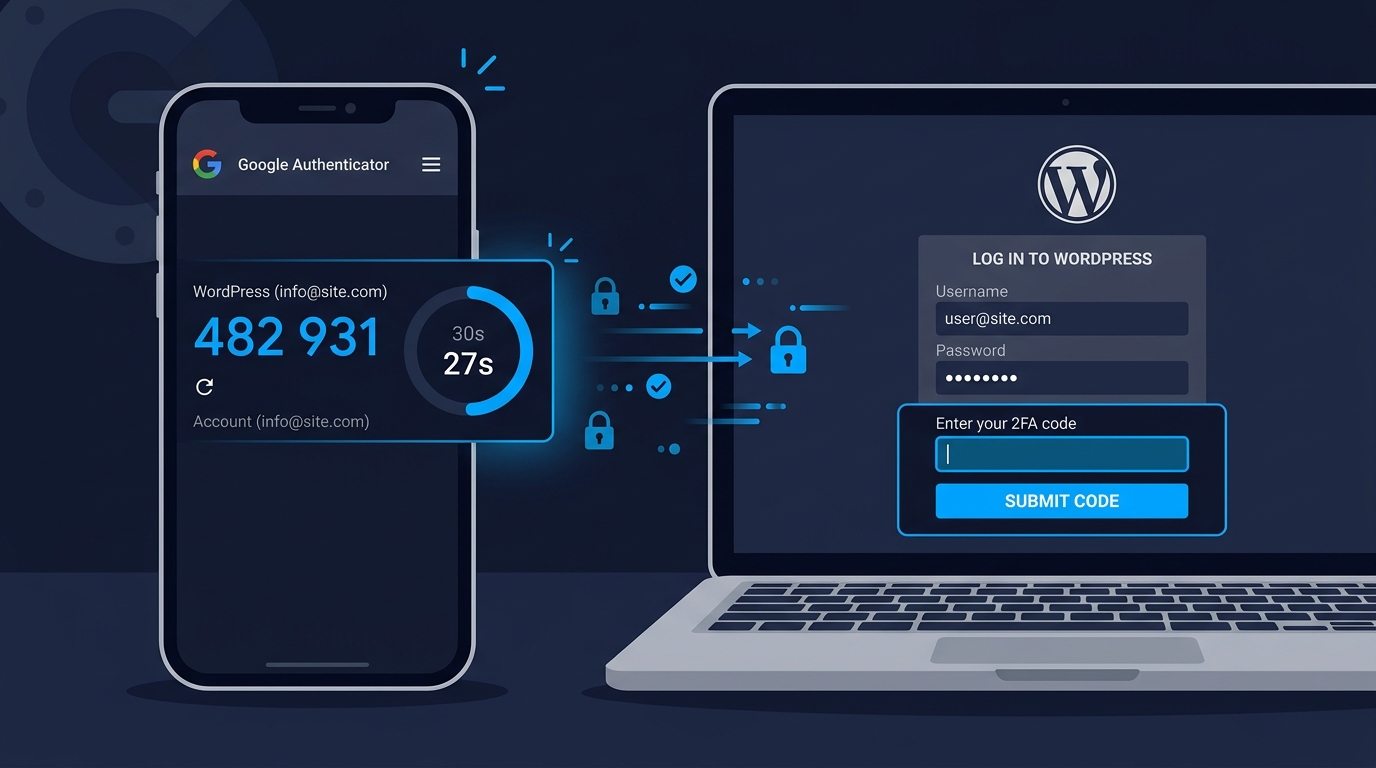
Even a strong password can leak through phishing or a breach on another site. Two-factor authentication (2FA) adds a second check, usually a time-based code from an app like Google Authenticator or Authy, so a stolen password alone is not enough to get in.
Turn on 2FA for every admin account at the very least. Plugins such as WP 2FA make it simple to set up. If several people use your WordPress admin, make 2FA compulsory for all of them.
4. Do Not Use “admin” as a Username
Older WordPress installs used “admin” as the default administrator username, and some sites still do. That hands attackers half of the login details. If your admin username is “admin”, change it today.
WordPress does not let you rename a user from the dashboard, but you can create a new administrator with a unique username, log in as that user and delete the old “admin” account, assigning its content to the new user when asked.
5. Limit Login Attempts
Out of the box, WordPress allows unlimited login attempts, which is what makes brute force attacks practical. Limiting login attempts blocks an IP address after a set number of failures, which stops most automated scripts.
Plugins like Limit Login Attempts Reloaded or WP Cerber handle this. Three to five failed attempts before a temporary lockout is a sensible setting, with longer lockouts for repeat offenders. Turn on email alerts so you know when lockouts happen.
6. Install a Security Plugin
A dedicated security plugin covers several layers of protection in one place. Wordfence and Sucuri are popular choices, offering malware scanning, a firewall, login protection and alerts.
The free version of Wordfence is enough for many small sites. The paid version gets new firewall rules and malware signatures sooner, which is worth considering if you handle customer data, payments or a lot of traffic.
7. Use HTTPS Across the Whole Site
An SSL certificate encrypts data sent between your visitors and your server. HTTPS is the baseline today, not an extra. Chrome labels sites without it as “Not secure”, which puts visitors off straight away, and Google uses HTTPS as a light ranking signal.
Most good hosts include free certificates from Let’s Encrypt. Once it is installed, make sure every page redirects from HTTP to HTTPS with a 301 redirect, and that images, scripts and other files also load over HTTPS.
8. Use a Web Application Firewall (WAF)
A web application firewall sits between your site and incoming traffic and filters out malicious requests before they reach WordPress. Cloudflare’s WAF is widely used and offers useful protection on its free plan. Sucuri and Wordfence also include firewalls.
A WAF helps block SQL injection, cross-site scripting (XSS), file inclusion attacks and many other common exploits. It is an important layer for any site that handles personal data or payments.
9. Disable XML-RPC If You Do Not Use It
XML-RPC is an older WordPress feature for remote publishing and some integrations. It is also a common target for brute force attacks, because one request can test many password guesses.
If nothing on your site needs it (Jetpack and some mobile publishing apps do), turn it off with a plugin such as Disable XML-RPC or through your security plugin. That closes off one more route without affecting how your site normally works.
10. Take Regular, Automatic Backups, and Test Them
Backups are your safety net when everything else fails. Malware, human error, plugin conflicts and hosting problems can all lose data. A recent, working backup turns a disaster into an inconvenience.
Schedule daily automatic backups stored off-site, not only on your hosting server. BlogVault, UpdraftPlus with remote storage or your host’s backup tool can handle this. Then test a restore now and then. A backup you cannot restore is not a backup.
Every one of our care plans includes daily off-site backups, and the Commerce plan adds hourly database backups for online stores.
Bonus: Harden Your WordPress Configuration
These extra steps reduce the attack surface further:
- Move wp-config.php one level above the public folder where your host allows it
- Disable the file editor in the dashboard by adding
define('DISALLOW_FILE_EDIT', true);to wp-config.php - Restrict wp-admin by IP address if your team always works from the same locations
- Hide the WordPress version number from your page source and RSS feeds
- Turn off directory listing in .htaccess so nobody can browse your folders
Security Is Ongoing, Not a One-Time Setup
Setting things up once and forgetting about them is not enough. New vulnerabilities are found in plugins and themes all the time, and attack methods keep changing.
That means regular scans, timely updates, monitoring and an occasional review of who has access to your site. Build these into a monthly routine, or hand them to a team that will do them consistently for you.
At Vyntic Studio, security is part of every site we create through our WordPress development service, and our care plans keep it that way after launch. For a wider look at building a sturdy site, read our guide to WordPress architecture for scalability.
Want an honest view of where your site stands? Request a free website audit, or get in touch with any questions about securing your WordPress site.



Comments