WordPress powers 43% of all websites on the internet. That scale makes it the single largest target for hackers, bots, and automated attack scripts in the world. The same popularity that makes WordPress so powerful also makes it the platform most actively exploited by malicious actors.
The good news is that most WordPress security incidents are entirely preventable. The vast majority of successful attacks exploit outdated software, weak passwords, and misconfigured settings — problems that have clear, practical solutions. This guide covers the essential WordPress security best practices your site needs to have in place in 2026, regardless of your technical skill level.
The Real Cost of a Compromised WordPress Site
Before we get into the fixes, it is worth being clear about what is actually at stake. A hacked WordPress site is not just a technical inconvenience. The consequences are real and often severe:
- Google blacklists infected sites and removes them from search results — sometimes within hours of infection
- Hosting providers suspend accounts that are distributing malware, taking your site offline
- Customer data is exposed, which triggers legal and compliance issues depending on your jurisdiction
- Malware is injected that redirects your traffic to scam sites, damaging your brand reputation
- Recovery is expensive — professional malware removal and cleanup can cost more than months of proper security maintenance
Prevention is dramatically cheaper than recovery. Here is what prevention looks like.
Essential WordPress Security Best Practices
1. Keep WordPress Core, Plugins, and Themes Updated
The number one cause of WordPress hacks is outdated software. When vulnerabilities are discovered in WordPress core, plugins, or themes, developers release patches. Hackers know about those vulnerabilities too — and they actively scan the internet for sites still running the vulnerable versions.
Enable automatic updates for WordPress minor releases. For major releases and plugin updates, review changelogs before updating on a live site, and test on a staging environment if your site runs complex functionality. The goal is to be updated within 48–72 hours of a security release.
Our WordPress maintenance plans include managed updates with pre-update backups and post-update testing — so you never have to choose between staying current and worrying about something breaking.
2. Use Strong, Unique Passwords and a Password Manager
Weak passwords are the second most common cause of WordPress breaches. Brute force attacks use automated scripts that attempt thousands of username and password combinations per minute. A password like “admin123” or “password2026” will be cracked in seconds.
Every WordPress account — admin, editor, author, and any service accounts — should use a randomly generated password of at least 16 characters. Use a password manager like 1Password or Bitwarden to generate and store these securely. Never reuse a password across multiple platforms.
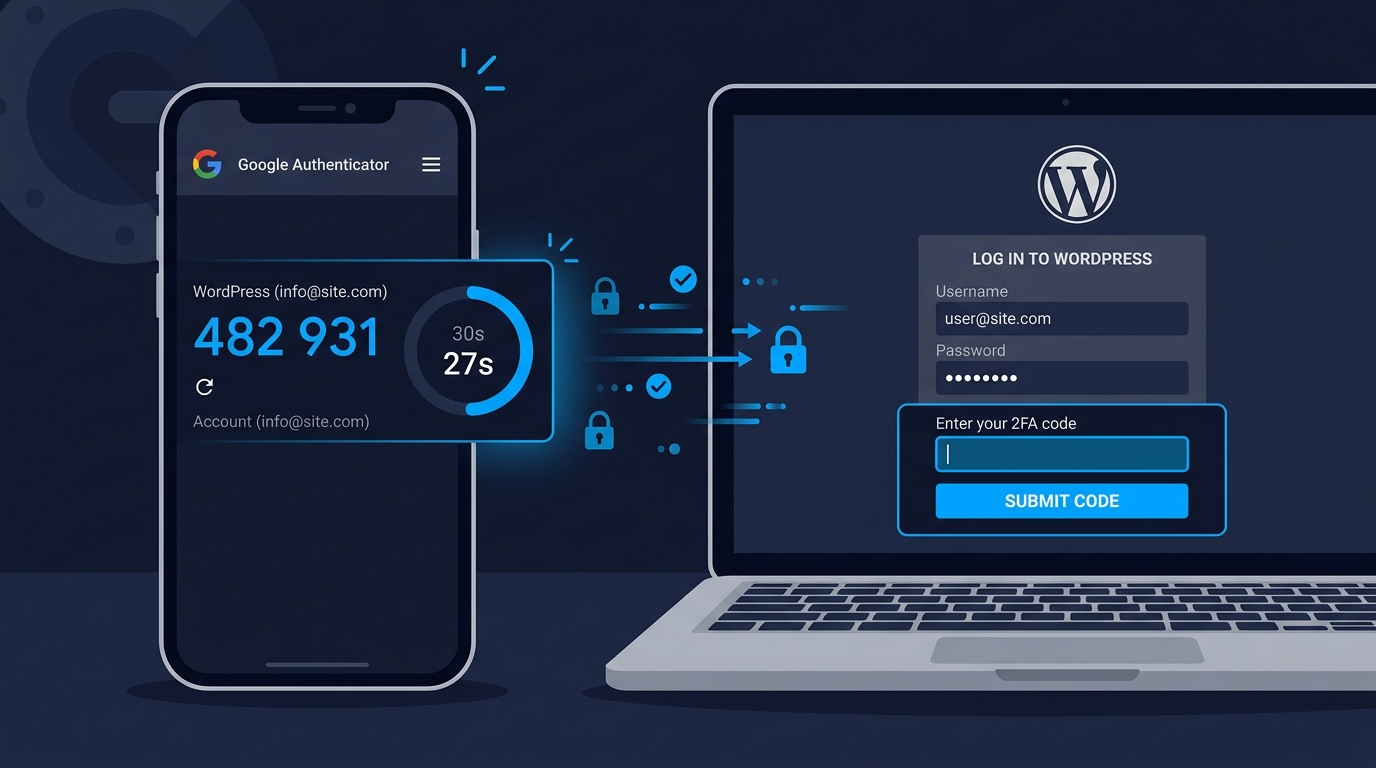
3. Enable Two-Factor Authentication
Even a strong password can be compromised through phishing or data breaches on other platforms. Two-factor authentication (2FA) adds a second layer of verification — typically a time-based code from an app like Google Authenticator or Authy — that makes stolen passwords alone useless to an attacker.
Enable 2FA for all WordPress admin accounts as a minimum. Plugins like WP 2FA or the Google Authenticator plugin for WordPress make this straightforward to implement. If you have multiple team members accessing your WordPress admin, 2FA should be mandatory for every account.
4. Change the Default Admin Username
WordPress used to set the default administrator username to “admin.” A significant number of sites still use this default, which means attackers already know half of the login credentials — they only need to guess the password. If your admin username is “admin,” change it today.
WordPress does not allow direct username changes through the dashboard, but you can create a new admin user with a unique username, assign Administrator role, log in as that user, and delete the original “admin” account — reassigning any content to the new user during deletion.
5. Limit Login Attempts
By default, WordPress allows unlimited login attempts. This is what makes brute force attacks possible. Limiting login attempts blocks IP addresses after a set number of failed logins, making automated brute force scripts ineffective.
Plugins like Limit Login Attempts Reloaded or WP Cerber provide this functionality. Set the threshold to 3–5 failed attempts before a temporary lockout, with escalating lockout durations for repeated offenders. Configure email alerts so you are notified when lockouts occur.
6. Install a WordPress Security Plugin
A dedicated security plugin handles multiple layers of protection in one place. Our recommended options for most WordPress sites are Wordfence or Sucuri, both of which provide malware scanning, firewall protection, login security, and real-time threat monitoring.
Wordfence’s free version provides strong protection for most sites. The premium version adds real-time firewall rule updates and faster malware signature updates — worth the investment for any site handling customer data, payments, or significant traffic.
7. Use SSL / HTTPS Across Your Entire Site
SSL encrypts data transmitted between your visitors’ browsers and your server. In 2026, HTTPS is a baseline expectation, not a premium feature. Google marks sites without SSL as “Not Secure” in Chrome, which kills visitor trust immediately. It is also a direct Google ranking factor.
Most reputable hosting providers include free SSL certificates through Let’s Encrypt. Once installed, ensure your entire site is redirecting from HTTP to HTTPS with a 301 redirect — not just your homepage. All pages, assets, and resources should be served over HTTPS.
8. Set Up a Web Application Firewall (WAF)
A web application firewall sits between your site and incoming traffic, filtering out malicious requests before they reach your WordPress installation. Cloudflare’s WAF is the most widely used option and offers solid protection on the free tier. Sucuri and Wordfence both offer plugin-level WAFs as part of their security suites.
A WAF protects against SQL injection, cross-site scripting (XSS), file inclusion attacks, and many other common vulnerability exploits. It is an important layer of defence for any site that handles sensitive data or processes transactions.
9. Disable XML-RPC if You Do Not Use It
XML-RPC is a WordPress feature that enables remote publishing and certain third-party integrations. It is also a common attack vector that allows hackers to perform amplified brute force attacks — testing thousands of username and password combinations in a single request.
If you are not using features that rely on XML-RPC (such as the Jetpack plugin or remote publishing tools), disable it entirely using a plugin like Disable XML-RPC or through your security plugin’s settings. This eliminates a significant attack surface with no impact on your site’s normal functionality.
10. Take Regular, Automated Backups — and Test Them
Backups are your last line of defence when everything else fails. Malware, human error, plugin conflicts, and hosting failures can all result in data loss. A recent, verified backup means any incident becomes a recovery scenario rather than a catastrophe.
Schedule daily automated backups stored off-site — not just on your hosting server. Services like BlogVault, UpdraftPlus (with remote storage), or your hosting provider’s backup solution can automate this. Critically: test your backups regularly. A backup you cannot restore from is not a backup.
All of our website care plans include automated daily backups with off-site storage and quarterly restore testing as standard.
Bonus: Harden Your WordPress Configuration
Beyond the core practices above, these additional hardening steps significantly reduce your attack surface:
- Move wp-config.php above the public root directory so it is inaccessible from the web
- Disable file editing in the WordPress dashboard by adding
define('DISALLOW_FILE_EDIT', true);to wp-config.php - Restrict access to wp-admin by IP address if your team works from consistent locations
- Remove WordPress version numbers from your site’s source code and RSS feeds
- Disable directory listing in your .htaccess file to prevent attackers from browsing your file structure
Security Is an Ongoing Practice, Not a One-Time Setup
Setting up security measures once and forgetting them is not enough. The threat landscape changes constantly. New vulnerabilities are discovered in plugins and themes regularly. Hacking techniques evolve. Your security posture needs to evolve with them.
This means regular security scans, kept-current software, ongoing monitoring, and periodic audits of your user accounts and access levels. Build these into your monthly routine, or hand them off to a team that will handle them consistently on your behalf.
At Vyntic Studio, security is built into every site we create through our WordPress development process — and maintained ongoing through our care plans. If you want an honest assessment of your current site’s security posture, request a free audit and our team will review it in detail.
Have questions about securing your WordPress site? Reach out to our team — we are happy to help.