
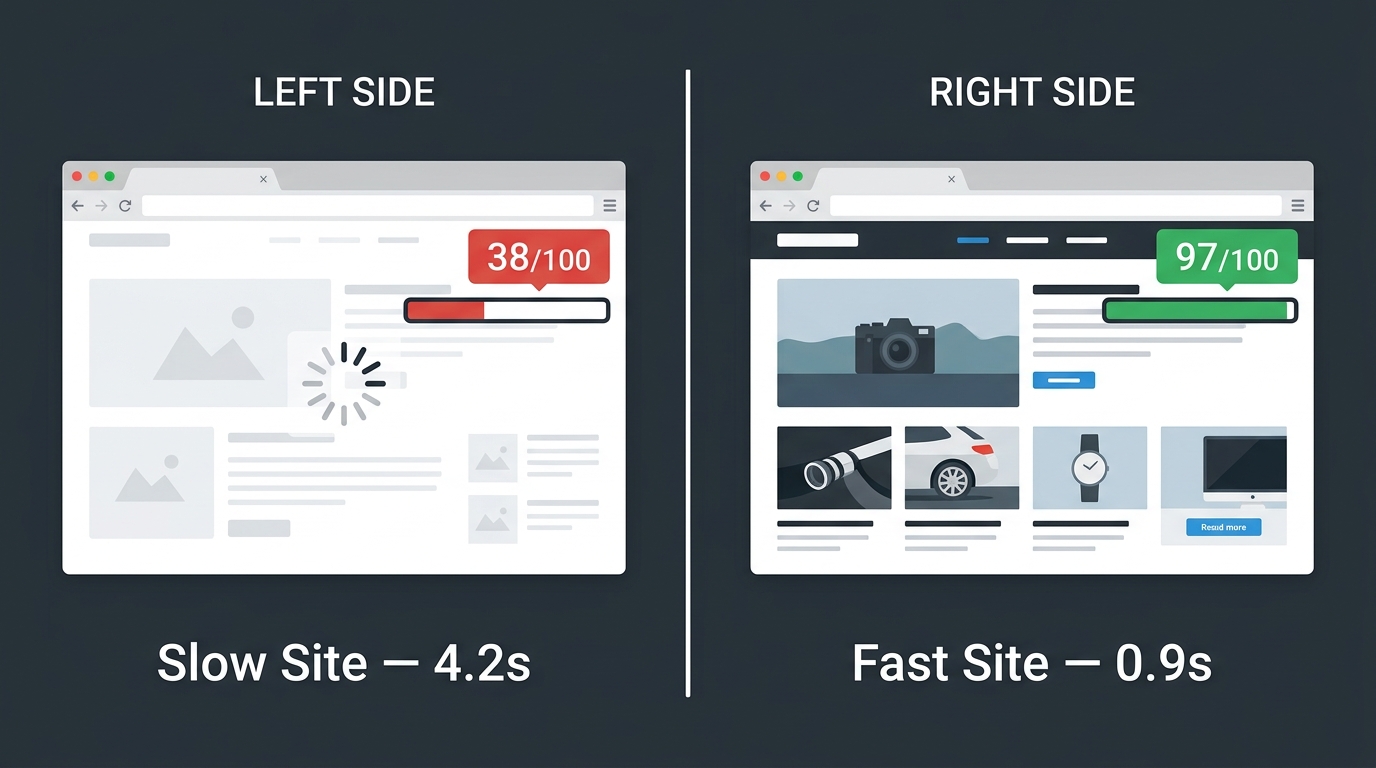
Your website has roughly 3 seconds to load before a visitor gives up and goes elsewhere. That is not an opinion — Google’s own research shows that as page load time goes from 1 second to 3 seconds, the probability of a visitor bouncing increases by 32%. For a business running paid traffic or relying on organic search, that number represents real lost revenue every single day.
WordPress speed optimization is one of the highest-ROI improvements any website owner can make, yet most WordPress sites are still running with completely avoidable performance issues. In this post, we walk through 10 proven fixes — the same ones we apply on every project at Vyntic Studio — that will make a measurable difference to your load times and your Google PageSpeed scores.
Why Speed Is Not Optional for WordPress Sites
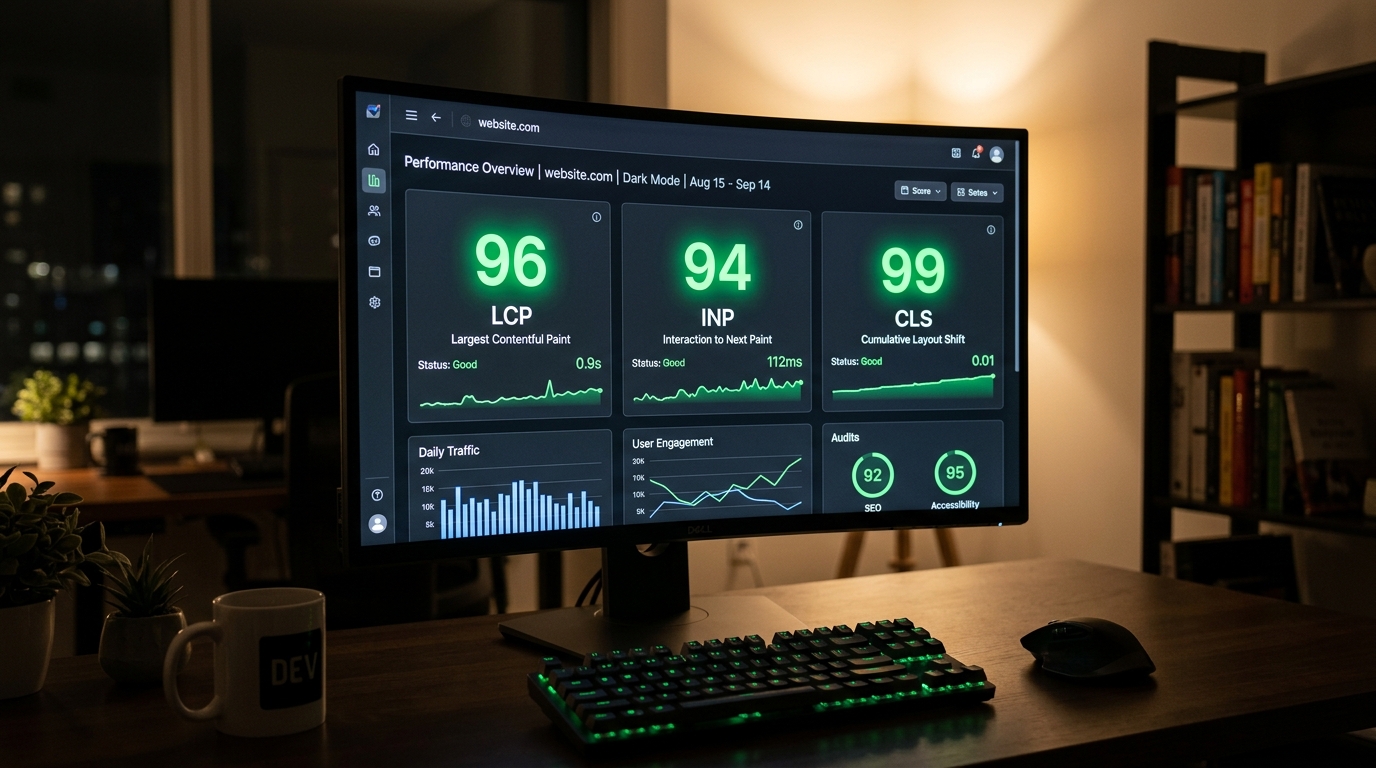
Page speed affects three things simultaneously: your search rankings, your user experience, and your conversion rate. Since 2021, Google has used Core Web Vitals as a direct ranking factor. Sites that fail LCP, INP, or CLS thresholds are at a competitive disadvantage in search results regardless of how good their content is.
Beyond Google, visitors simply expect fast websites. A 2024 Portent study found that a site loading in 1 second converts 3x better than a site loading in 5 seconds. Every second of delay costs you customers who were ready to buy or enquire but left before the page finished loading.
10 WordPress Speed Optimization Tips That Deliver Real Results
1. Start With the Right Hosting
Your hosting environment is the foundation of everything. No amount of optimization will fully compensate for a slow server. Shared hosting plans are designed for many users on one server, which means your site competes for resources every time traffic spikes.
For a serious business WordPress site, you need managed WordPress hosting — providers like Kinsta, WP Engine, or Cloudways — that offer dedicated resources, server-level caching, and servers tuned specifically for WordPress. This single change often produces the most dramatic improvement in Time to First Byte (TTFB), which is the foundation of every other speed metric.
2. Use a Lightweight, Performance-First Theme
Many WordPress themes ship with dozens of features, font libraries, icon sets, and scripts that most site owners never use — but that every visitor downloads on every page load. A lightweight theme that loads only what each page actually needs is one of the most impactful structural decisions you can make.
At Vyntic Studio, our custom WordPress builds use lean, purpose-built themes without bloated dependencies. The result is a clean baseline that makes every other optimization effort more effective.
3. Compress and Convert Your Images
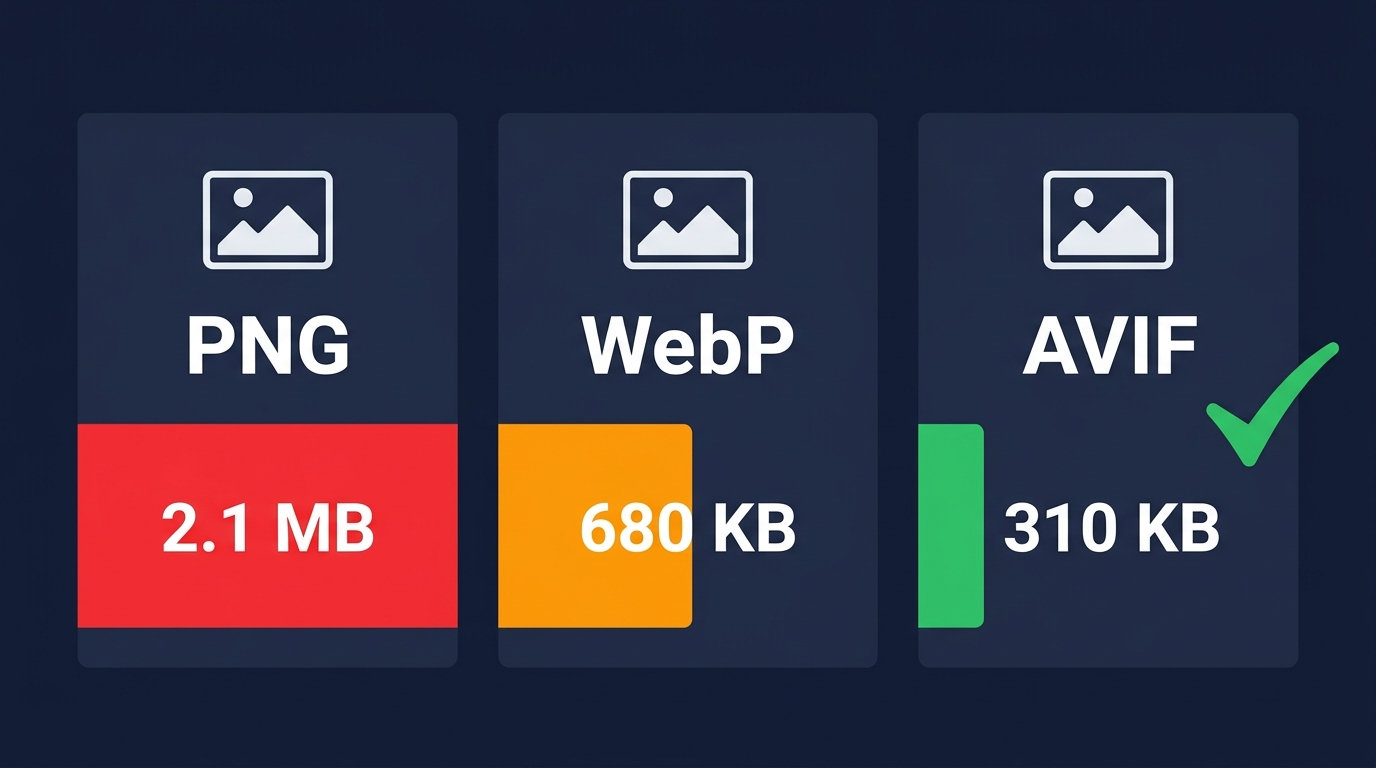
Images are typically the largest assets on any web page, and they are where most speed problems originate. Never upload a PNG or JPEG when WebP or AVIF will do the job at a fraction of the file size. WebP images are typically 25–35% smaller than equivalent JPEGs with no visible quality difference. AVIF is smaller still, though browser support, while growing, is not yet universal.
Use a plugin like ShortPixel, Imagify, or Smush to convert and compress images automatically on upload. Set a quality threshold of 80–85% — enough to look sharp on screen while keeping file sizes lean.
4. Implement Server-Level Caching
Caching stores a pre-built version of your pages so that WordPress does not have to rebuild them from scratch every time someone visits. Without caching, every page request triggers a chain of PHP execution and database queries. With caching, returning and new visitors receive a static HTML file that loads almost instantly.
Server-level caching (configured at the hosting level) is more effective than plugin-based caching alone. If your host does not offer built-in caching, plugins like WP Rocket or W3 Total Cache provide good results when configured correctly.
5. Set Up a Content Delivery Network (CDN)
A CDN stores copies of your site’s static assets — images, CSS, JavaScript — on servers distributed across the globe. When a visitor loads your page, those assets are served from the server geographically closest to them, rather than from your origin server.
Cloudflare’s free CDN is the most common choice and delivers meaningful improvements for most WordPress sites. For sites with heavy global traffic or specific performance requirements, Cloudflare Pro or a dedicated CDN service offers even greater control.
6. Minify CSS, JavaScript, and HTML
Minification removes unnecessary whitespace, comments, and formatting from your code files without changing how they function. A 120KB JavaScript file can often be reduced to 85KB through minification alone — a 30% reduction in transfer size that adds up across every page load.
Plugins like WP Rocket, LiteSpeed Cache, or Asset CleanUp handle minification automatically. Be sure to test thoroughly after enabling minification, as aggressive settings can occasionally break JavaScript-dependent features.
7. Defer and Lazy Load Resources
Not everything on your page needs to load immediately. Scripts that power chat widgets, analytics, social sharing buttons, and marketing pixels should be deferred until the main content has finished loading. Images below the fold should load only as the user scrolls toward them — this is called lazy loading and it is now a native browser feature that WordPress enables by default.
Review what is loading on your pages using Chrome’s Network tab or a tool like GTmetrix. Anything that is not critical to the above-the-fold experience should be deferred, async-loaded, or triggered on user interaction.
8. Clean Up Your Plugin List
Every active plugin on your WordPress site adds code that loads on some or all of your pages. Some plugins are well-built and lightweight. Many are not. Ten plugins that each add 20KB of JavaScript add up to 200KB on every page load — before your content, images, or theme assets are even counted.
Run a plugin audit. Remove anything you are not actively using. Replace heavy plugins that perform simple tasks with lightweight alternatives or custom code. The fewer plugins you rely on, the faster and more secure your site will be.
9. Optimize Your Database
Over time, your WordPress database accumulates post revisions, spam comments, transients, and orphaned data from uninstalled plugins. A cluttered database slows down every database query your site makes, which affects every page load.
Use a plugin like WP-Optimize to clean your database regularly — removing post revisions above a set limit, clearing expired transients, and cleaning up orphaned data. Schedule this to run automatically on a monthly basis and include it in your ongoing website maintenance routine.
10. Enable HTTP/2 and GZIP or Brotli Compression
HTTP/2 allows multiple requests to be sent simultaneously over a single connection, significantly reducing the overhead of loading many small files. Most modern hosting providers support HTTP/2 and it is typically enabled by default — but it is worth confirming with your host.
GZIP or Brotli compression reduces the size of text-based files (HTML, CSS, JavaScript) transferred between your server and the visitor’s browser. Brotli is newer and more efficient than GZIP, and is supported by all major browsers. Enabling either one at the server level can reduce transfer sizes by 60–80% for text assets.
How to Test Your WordPress Speed
Before and after implementing changes, test your site’s performance with these tools:
- Google PageSpeed Insights — measures both lab data and real-user field data; the closest proxy to how Google evaluates your page
- GTmetrix — detailed waterfall analysis showing exactly which resources are slowing your page down
- WebPageTest — advanced testing with geographic location and connection speed options
- Chrome DevTools Lighthouse — run directly in your browser for a full performance audit with specific fix recommendations
Target a score of 90 or above on both mobile and desktop in Google PageSpeed Insights. Mobile performance is particularly important because Google uses mobile-first indexing, meaning it evaluates and ranks your site based on the mobile version.
When Optimization Is Not Enough
Some WordPress sites have performance problems that go deeper than plugin settings and image compression. If your site was built on a heavy page builder, uses an outdated theme architecture, or is running on shared hosting that cannot be changed, you may reach the limits of what optimization can achieve without a more substantial rebuild.
At Vyntic Studio, we offer website redesigns specifically for sites where the underlying architecture is the problem — rebuilding on a clean, performance-first foundation that achieves 90+ PageSpeed scores by design, not by patching.
If you are not sure where your site stands, get a free performance audit from Vyntic Studio. We will review your current scores, identify exactly what is holding your site back, and give you a clear picture of the fastest path to better performance.
Final Thoughts
WordPress speed optimization is not a one-time task. It is an ongoing discipline that requires regular auditing, testing, and adjustment as your site grows. The good news is that the fundamentals — good hosting, clean code, optimized images, proper caching — remain constant even as tools and techniques evolve.
Implement these 10 fixes, track your scores, and measure the impact on your bounce rate and conversions. The results will make the investment obvious.
Your website should load fast and convert well. If it is not doing both right now, let’s fix that together.